At MevaSearch, you have full control over how your search results look and function. If you prefer a classic view without automatic AI-generated summaries, you can easily turn them off.
You can do this using one of two methods: during your initial account setup or at any time while using the platform.
How to Disable AI Summaries
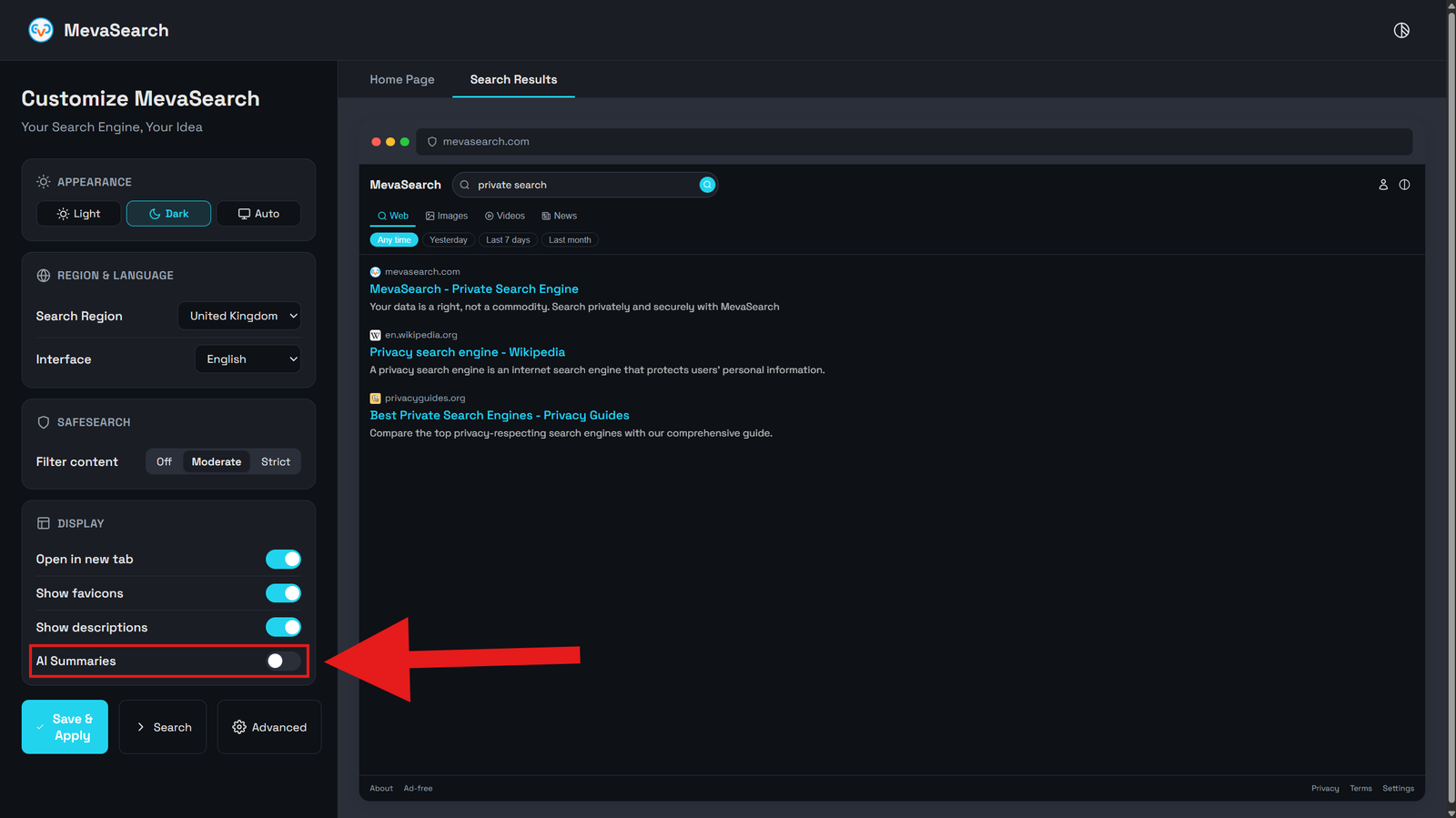
During Initial Setup (Customize Screen)
Method 1
If you are just creating your MevaSearch account, you can tailor your experience before performing your very first search.
1. Complete the registration process and successfully verify your account.
2. After verification, you will be automatically redirected to the Customize screen.
3. Locate the AI features section on the personalization list.
4. Turn off the AI feature using the toggle switch.
5. Click Save Changes to apply your preferences and access the clean search interface.
1. Complete the registration process and successfully verify your account.
2. After verification, you will be automatically redirected to the Customize screen.
3. Locate the AI features section on the personalization list.
4. Turn off the AI feature using the toggle switch.
5. Click Save Changes to apply your preferences and access the clean search interface.
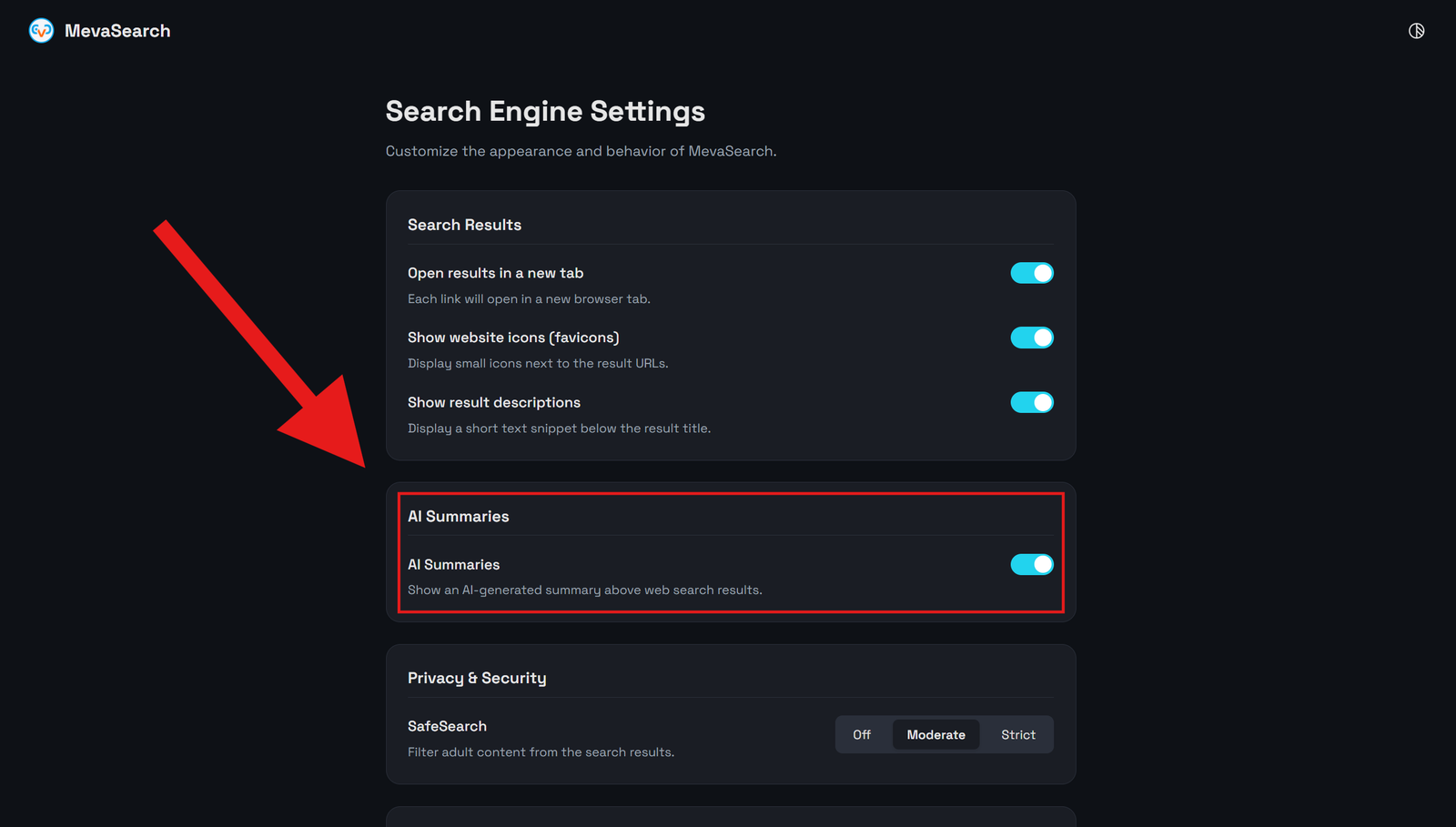
At Any Time (Account Settings)
Method 2
If you have been using MevaSearch for a while and want to disable the AI assistant, you can do so directly from your control panel.
1. Log into your MevaSearch account.
2. Navigate to Settings (the gear icon or the settings tab in your profile menu).
3. Look for the section named AI Summaries.
4. Switch the toggle button to the off position.
5. Click Save Changes to apply your preferences, and all subsequent searches will display standard, organic results only.
Tip: You can return to these settings and re-enable AI Summaries at any time if you change your mind. Your preferences are completely reversible.
1. Log into your MevaSearch account.
2. Navigate to Settings (the gear icon or the settings tab in your profile menu).
3. Look for the section named AI Summaries.
4. Switch the toggle button to the off position.
5. Click Save Changes to apply your preferences, and all subsequent searches will display standard, organic results only.
Tip: You can return to these settings and re-enable AI Summaries at any time if you change your mind. Your preferences are completely reversible.